Description
A guide for Program Coordinators on accessing and reviewing participant progress in the Gradebook, including summary views, aggregated data, individual details, and switching between views.
Prerequisites
Be assigned the Program Coordinator role in the course.
Have access to an active course within the platform.
The Gradebook feature must be enabled.
Procedure
Step 1. Access the Gradebook Summary
Enter the assigned course.
Locate and select the Gradebook option.
Review the Gradebook Summary, which displays overall participant progress in the course.
The Gradebook Summary includes:
Participant names
Progress by component (Knowledge Checks, Portfolio, Activities)
Total progress overview
See Image 1: Gradebook Summary view for Program Coordinators.

Step 2. View aggregate participant progress by module
From the course menu, select Participants Assignments/Activities.
Review the aggregated progress data displayed by the module.
Use the bar chart to identify overall participation and completion trends.
Additional information can be accessed by clicking on any of the bars in the chart.
See Image 2: Aggregate participant progress by module (bar chart view).

Step 3. View progress by individual participant
Click on any column within the bar chart.
Review the Participant Progress view.
Observe the list of participants along with their individual completion percentages.
This view allows Program Coordinators to quickly identify participants who may need additional support.
See Image 3: Individual participant progress list.

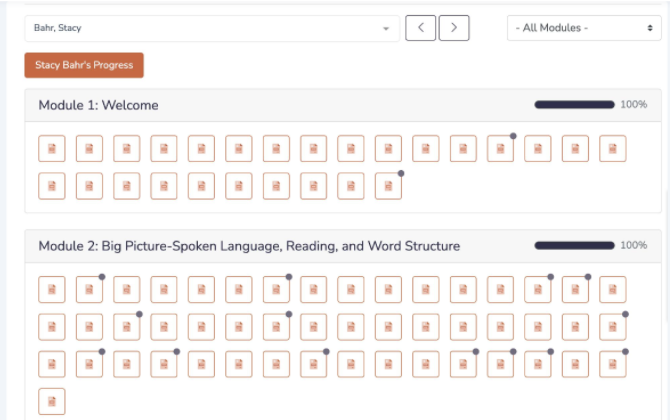
Step 4. Review participant progress by activity and module
Click on a participant’s name from the Participant Progress list.
Review the detailed breakdown of progress by module.
Examine individual activities and completion indicators within each module.
This view provides a detailed understanding of participant engagement at the activity level.
See Image 4: Participant progress by activity and module.
Step 5. Switch between Student View and Instructor View
If a user is both a participant and a Program Coordinator in the same course:
Locate the view selector in the top-right corner of the Gradebook page.
Use the dropdown menu to switch between:
Student View
Instructor View
This allows users to review the course from different perspectives as needed.
See Image 5: View selector for Student View and Instructor View.

5. Important considerations
Program Coordinators have read-only access and cannot modify grades or submissions.
The data displayed reflect participants' progress at the time of access.
Course structure and available views may vary slightly depending on course configuration.
Still having trouble?
If you experience issues accessing the Gradebook or reviewing participant progress, please contact the academic support team through the institutional ticketing system.
Submit a ticket here.
Was this article helpful?
That’s Great!
Thank you for your feedback
Sorry! We couldn't be helpful
Thank you for your feedback
Feedback sent
We appreciate your effort and will try to fix the article